
Meet MyLoop: Your Loop TV Portal, Rebuilt

Loop TV
Your Loop TV portal has a new name, a new home, and a whole new everything behind it. MyLoop is live at my.loop.tv.
You asked, and we listened. The old portal had been around a long time. It was tricky to navigate and it was not the easiest thing to manage. So we took your notes and rebuilt it from the ground up.
Start here: MyLoop has a new address
- MyLoop lives at my.loop.tv.
- Your old biz.loop.tv will redirect to the link for a short period of time, so save the new one now.
- You can also reach MyLoop any time from the account icon in the top right of loop.tv.
- Your login has not changed, and everything came with you.
Prefer to watch?
Daniel from our team walks through the whole portal, from the dashboard to signage sets to channel schedules. Take the tour: https://youtu.be/U4G3Ue8AA50
A dashboard that opens with the answer
Sign in and MyLoop tells you what you need to know before you click anything.
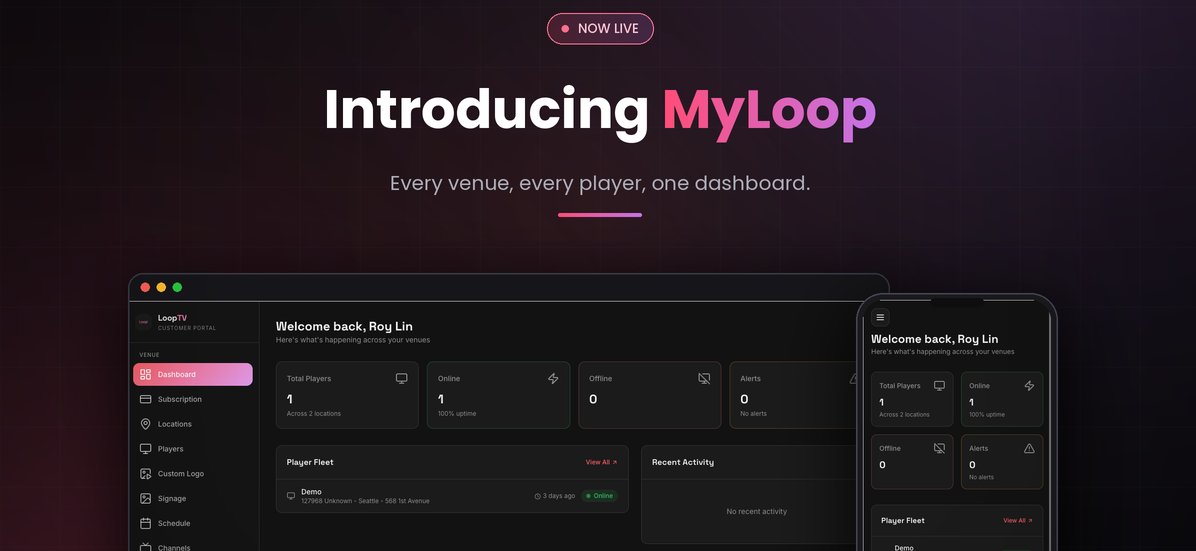
- Your whole fleet at a glance: how many players you have, across how many locations, and how many are online right now.
- If the Wi-Fi drops at one venue, you’ll see it here first.
- If a player stays offline for 7 or 14 days, we will alert you rather than waiting for you to notice.
- The Player list shows every player on your account: its name, its TV code, which venue it belongs to, whether it is online, and what changed recently.
Locations and players: two ways to find the same screen
- If you think in venues, use Locations. Search by name, address or city, then open a venue to see its hours, its time zone, and every player in it, including what is playing right now.
- If you think in screens, use Players. Filter by Online, Offline, or Degraded, which is our word for a player that is getting old and may be due a swap.
- Search any way you like: by player name, TV code, or MAC address, which is printed on the bottom of the device. Every column sorts.
Your logo, on every screen
- One upload covers everything. Drop a logo into Custom Logo and it applies across every player on your account, not one at a time.
- Change it whenever. Swap in a seasonal version or take it down again in a couple of clicks.
Signage, now all in one place
The signage library and signage sets used to live in separate places. They are both under Signage now, and the Asset Library is where to start.
- Upload the pictures and videos you want on screen.
- Search, filter by image or video, sort, rename or delete, all from one place.
- Images need to be PNG or JPEG. Video needs to be MP4.
Tickers
A ticker is the line of text that scrolls along the bottom of the screen, like the ones on a news channel.
- Write your own for a daily special or a welcome message.
- Or paste in an RSS feed URL and let MyLoop pull live headlines through.
- Text and background colours are both yours to set.
Signage sets, and when they play
A signage set is a bundle: pictures, videos and tickers grouped into one campaign, like Morning Announcements or Happy Hour. Every set shows how many items are in it and how many screens are running it, so you can see where your messaging is live without opening anything. Then you decide when it runs.
- Pick the days. Example: Weekends only, weekdays only, or every day.
- Pick the window. Example: A breakfast promo can start at 5am and stop at 10am.
- Pick the frequency. Example: Continuously, after every video, or after every few. Somewhere between two and four tends to land your message without wearing it out.
Channel schedules
Set your Loop content to follow the rhythm of your day.
- Build a schedule in 15 minute blocks and give each block its own channel mix.
- Something calm from midnight until you open, something brighter once the room fills up.
- Switches wait for the current video to finish, so nothing gets cut off halfway.
- Changing your channels a few times a week keeps the room feeling different for your staff as much as your customers.
Finding content worth playing
The Channels tab exists because people kept telling us they did not know what we had.
- Browse by vibe: Adrenaline, Calm & Scenic, or Play & Participate.
- Or browse by room: Welcome & Wait, Train & Perform, and Social & Shared spaces.
- Click any channel and it plays right there, with sound if you want it, so you can tell whether it suits your space before it ever reaches a screen.
Settings and your profile
- Pick light, dark or system theme for the whole portal.
- Update your name, email, phone number and business name yourself, and change your password whenever you need to.
- Business address changes still come through us, so we can check the address before it goes live across your account. Email customercare@loop.tv and we will sort it.
Coming soon: Analytics and Support
You will spot both in the sidebar already, greyed out.
- Analytics will show you how long content has been playing and which channels do best across your venues.
- Support will bring troubleshooting guides and FAQs into the portal itself.
- Neither is live yet, and we will tell you when they are. In the meantime, support.loop.tv has the help articles.
Ready to look around?
MyLoop is live at my.loop.tv. Sign in with the details you have always used, and save the new link while you are there.
We built this around how you actually run your venues, so tell us what works, what does not, and what you want to see next.